
Screen freezing on an iPhone is one of the common issues that some users encounter. The sudden freezing where you can’t open apps, swipe the screen, or turn off the device can be really frustrating. Sometimes a simple restart can solve the issue. But in some cases you may need a force restart or recovery mode. Knowing how to restart iPhone can help you restore your phone to normal working condition very easily. This guide explains how to restart iPhone when frozen and other restart options and when to use them.
How to restart an iPhone normally
A normal restart is the first option to consider when there are minor glitches in your iPhone, like slowing down, apps not responding, and touch stops working sometimes. How to restart iPhone? On most of the iPhone models, press and hold the side button and either volume button until the power-off slider appears. Drag the slider to the right to power off and wait for 30 seconds to turn off the phone completely. Then press and hold the side button until the Apple logo appears to turn it on again.
How to restart an iPhone normally
When the iPhone gets frozen, the touch screen won’t respond. Many users wonder how to restart iPhone without touch. During such a situation the force restart option will be useful. Here is how to restart iPhone when frozen:
- Quickly press and release the volume up button.
- Quickly press and release the volume down button.
- Press and hold the side button.
- Continue holding it until the Apple logo appears.
- Release the button once the logo appears.
Remember not to release the side button too quickly before the logo appears. These steps are the same in almost every newer model of iPhone. Slight variations can be there for older models. This option does not erase data stored in the iPhone, and it is effective at times of unresponsive display.
When to use recovery mode
Recovery mode is another option to be considered in case the normal restart and force restart do not work. It can be used when the phone gets stuck on the Apple logo and cannot start on its own or when the phone experiences serious software-related issues.
You will need a Mac or Windows PC and a compatible cable. After connecting the iPhone, you can place it into Recovery Mode and use Finder or the relevant Apple software on Windows to update or restore the device. An update may reinstall the iOS software without erasing your personal data. If the update does not solve the problem, a restore may be necessary, which can erase the device data.
How to restore iPhone data after a problem
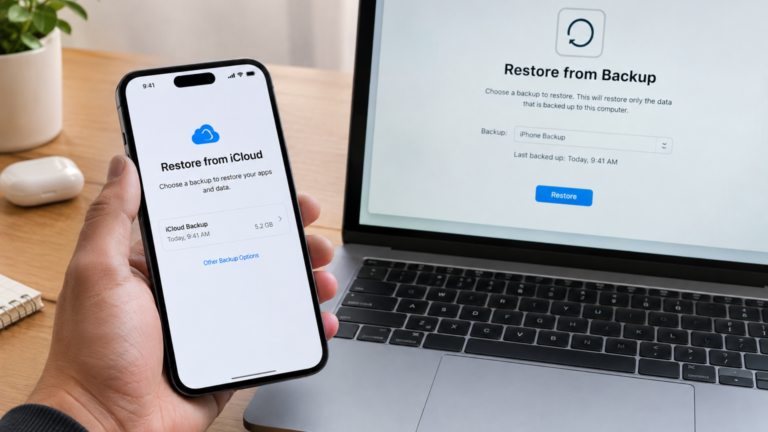
The biggest concern during iPhone issues is the erasing of data. So, before performing major troubleshooting, it is always better to have a backup. In such a case after the iPhone has been restored, you can recover the data from an iCloud or computer backup. An iCloud backup can be restored during the iPhone setup process and the computer backup can be restored using appropriate Apple software.
The process of how to restore iPhone data depends on the location of the backup. Remember, if you don’t have a backup, some data may not be able to recover after a full restore.
Restart and quick start
Many users ask the question of how to restart iPhone Quick Start, thinking that they both are the same. Quick start is different from restarting your iPhone. Quick Start is a feature that helps you set up a new iPhone using your existing device. Quick Start can guide you through transferring information and setting up the new device.
Professional assistance matters
If your iPhone remains frozen even after trying these options, the problem may not be a software freeze. A damaged display, battery problem, liquid exposure, or another hardware issue could also be responsible. In such situations, it is necessary to seek professional service providers who can perform thorough inspection and diagnose both software and hardware problems.
Conclusion
Understanding how to restart iPhone can help you with temporary freezes. Start with a normal restart, if it doesn’t work, try a force restart. Recovery mode should be considered when the device has many serious problems. It is also important to keep regular backups, which is the best way to keep your data and other information safe and easy to recover. At Apple Care, we help you with all repair and service of various Apple devices. We are the most trusted Apple repair center in Qatar, with years of expertise. Contact us for more information.
Frequently Asked Questions
Will force restart erase files in my iPhone?
No. A force restart does not erase your files or other information. It just shuts down the device and starts it again.
Will restoring my iPhone delete all the files?
A full restore can erase the device. Before restoring, make sure you have an iCloud or computer backup to retrieve data.
Can I restart the iPhone without using the touch screen?
Yes. If the touchscreen is not responding, you can use the physical buttons to do a force restart.
Can I use the recovery mode when the iPhone is frozen?
It is recommended to use the recovery mode only after the normal restart and force restart do not fix the issue.