
Why Your iPhone Loses Wi-Fi and Bluetooth Connectivity After an iOS Update
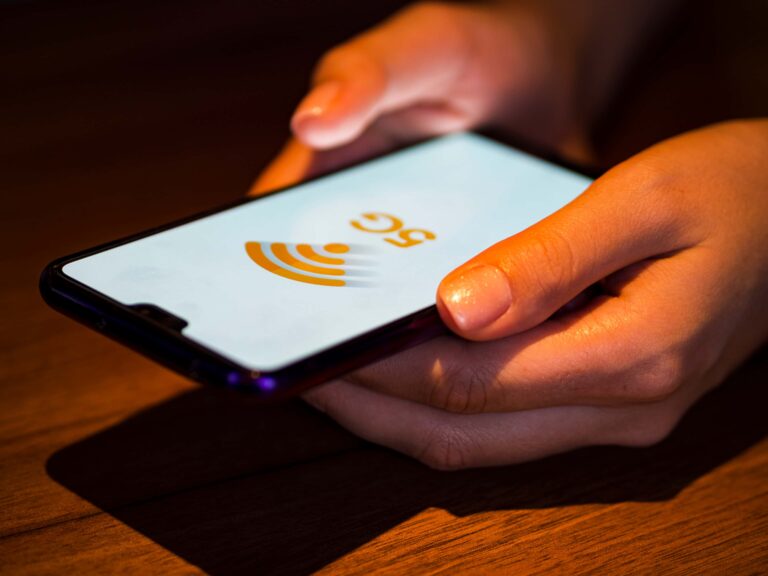
Are you finding yourself dealing with iPhone Wi-Fi and Bluetooth connectivity issues following a recent update on your iPhone device? You are not alone. It seems there are many people who now understand the frustration associated with finding it impossible to maintain Wi-Fi and Bluetooth connections on your device, especially if it was not doing this before the update. Wi-Fi and Bluetooth connectivity on your iPhone device are fundamental when it comes to doing various activities such as streaming contents or connecting your device to your AirPods, speakers, or even your keyboard. Learning how to deal with iPhone Wi-Fi and Bluetooth connectivity issues is important. iPhone service centers in Qatar might be able to help you solve your problem if you are not able to solve it on your own.
What Happens After an iOS Update
Every time you update your iPhone to the latest version of iOS, there is radical change taking place under the hood. At the level of system change, these updates not only bring users new and improved functions and features, changes and modifications also take place among the Wi-Fi and Bluetooth communication protocol settings. At times, updates also carry changes that pertain to the background services that regulate the usage and connectivity via Wi-Fi and Bluetooth, or they carry changes to the low-level firmware that regulates the radios that use these services. Such changes, though beneficial to improved security and performance, sometimes also result in connection conflicts that affect Wi-Fi and Bluetooth connectivity. Even with point fixes to bug errors, connectivity continues to be an issue with some handsets.
Typical Causes of Post-Update Wi-Fi & Bluetooth Problems
There are certain underlying causes that can trigger Wi-Fi and Bluetooth connectivity issues after the iOS update:
- Software Bugs: When a new version of the system and applications are released, this can result in software bugs that affect the stack and impair the
- Corrupted Network Settings: In some instances, the update procedure can result in some misconfigured or corrupted network settings
- VPN or Security Conflicts: VPNs or certificates for profiles possibly interfering with network communications.
- Hardware Limitations/Damage: Sometimes, the update only reveals existing hardware issues with the Wi-Fi and Bluetooth module itself.
Identifying the Symptoms
Wi-Fi Symptoms
You might be having Wi-Fi and Bluetooth connectivity issues if your iPhone displays any of the following:
- Regular disconnections from Wi-Fi networks without notification
- Joining Saved Networks or Greyed out Wi-Fi Options
- Wi-Fi signal shows as connected but no internet connectivity is possible
These pointers point to the situation whereby Wi-Fi configurations or system services start experiencing instability following an update.
Bluetooth Symptoms
In addition, connectivity related to Bluetooth may also be affected:
- Bluetooth accessories will not pair
- Devices disconnect randomly while in use
Bluetooth settings appear unresponsive or grayed out. Such problems imply an erroneous radio communication or database for the Bluetooth connection.
Troubleshooting Problems
Here’s a step-by-step process you can follow to troubleshoot your Wi-Fi & Bluetooth connectivity issues on your devices after an iOS update:
- Restart
Turning off and then turning on can sometimes remove any glitches in wireless communication. - Toggle Airplane
To reset all wireless radios, you must turn airplane mode on and off. - Forget and Reconnect
In Settings > Wi-Fi, select your network, touch Forget Network, and then re-establish a connection. This removes any corruption in saved Wi-Fi profiles. - Turn Bluetooth Off and On:
Settings, Bluetooth, toggle off, wait a few seconds, then toggle Bluetooth back on. - Check VPN or Security Profiles:
Delete unnecessary VPN connections that may be outdated and affect network traffic. - Reset
Go to Settings > General > Transfer or Reset iPhone > Reset > Reset Network Settings. This will remove Wi-Fi passwords but may solve connection problems. - Upgrade to the Latest iOS Patch
Apple periodically releases updates which solve known wireless bugs. Always upgrade to the latest version. - Test with Another Network or Device:
Determine if this is an issue just for you.
If these troubleshooting procedures do not cure the problem with Wi-Fi or Bluetooth connections, it may point to underlying hardware problems. Under such circumstances, it would be prudent to approach the authorized iPhone service center in Qatar for specialized diagnosis and service.
Preventive Tips Before Updating iOS
In order to prevent connection problems with Wi-Fi or Bluetooth in the future:
- Backup your device Before major updates, it is always a good idea to perform a complete backup of your device.
- Update VPN & Security Apps: Make sure they are updated to be iOS version-compatible.
- Check Router Compatibility: The firmware in older routers can sometimes have problems with new wireless stacks in iOS.
All these measures help ensure that the number of conflicts is minimized, which could have otherwise interrupted connectivity following the update.
Conclusion
Post-update problems in Wi-Fi and Bluetooth connectivity on the iPhone might range from software bugs and network misconfigurations to even hardware shortcomings. While the majority of such issues can be overcome by structured troubleshooting (like restarts, network setting reset, and software patches), there are instances that require professional intervention. If your iPhone keeps showing unstable wireless performance even after trying out all the recommended steps, then a visit to an iPhone service center in Qatar will help diagnose such hardware anomalies with precision.
Frequently Asked Questions
Why I have bad Wi-Fi connectivity on my iPhone after the iOS update?
Sometimes, after upgrading, your iPhone will restore or replace the most essential networking files, leading toconfiguration or software issues with Wi-Fi or Bluetooth. These problems might arise from the simplest mistakes, such as improper network profiles, outdated pairing, and more.
Will resetting the network settings resolve the Wi-Fi and Bluetooth connection issues?
Restoring network settings can fix problematic settings on your iPhone for Wi-Fi and Bluetooth connectivity. No saved networks and Bluetooth connections are left on your iPhone to rebuild new connections.
Can interference from accessories, or other devices, contribute to Wi-Fi/BT problems?
Yes. Range, barriers, and interference from other devices can reduce the strength of the signal and impair Wi-Fi and Bluetooth connections. Moving closer to the router and Bluetooth device can improve the quality of the connection.
Can an update for an iOS device potentially improve and worsen already existing connectivity problems with Wi-Fi and Blue Tooth connectivity?
Though the iOS update may involve improvements to wireless networking through patches that correct certain “bugs,” in the short term, these updates may also generate interactions that will impact the operation of the Wi-Fi and/or Bluetooth networks. Applying the latest dot release to the iOS operating system will often resolve this problem.
What should be the measures taken prior to approaching the iPhone service center in Qatar in case of connectivity issues?
Begin with basic troubleshooting steps: Restart your iPhone, Turn Airplane mode on and off, Forgetting and Rejoining Wi-Fi networks, Unpair and Re-pair Bluetooth Devices, and Reset Network Settings. Only when you face Wi-Fi and Bluetooth connection problems, you would possibly consider taking your iPhone to an iPhone service centre in Qatar.