
Common iPhone Issues

The category of Common iPhone Issues deals with the common issues that iPhone users encounters daily. This category Provides clear explanations on issues regarding battery, connectivity, software, hardware and other similar problems.

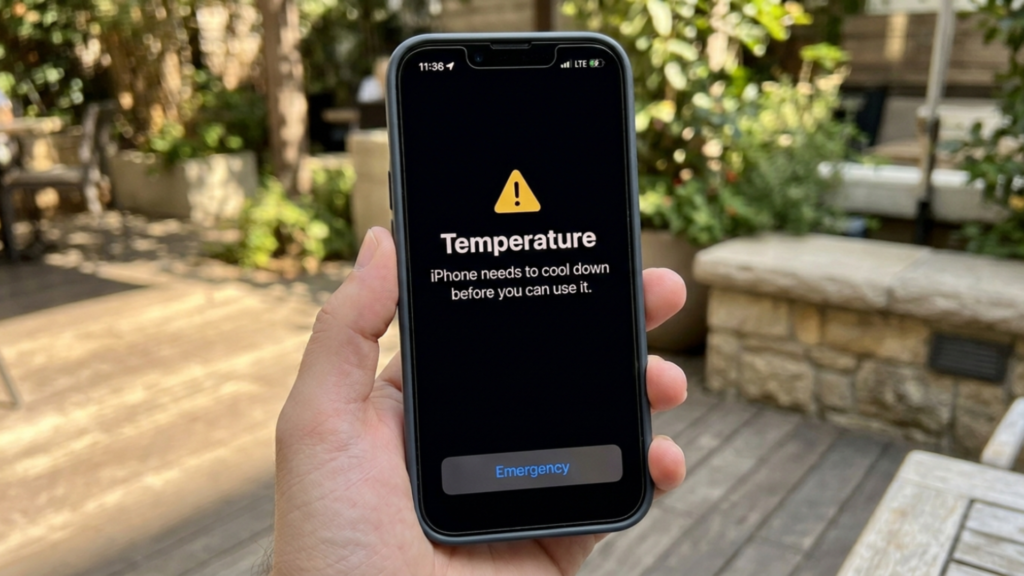
how to stop iphone overheating

How to Stop iPhone Overheating: Simple Fixes That Actually Work

How to Stop iPhone Overheating: Simple Fixes That Actually Work How to Stop iPhone Over Heating All users of iPhone have the same opinion that performance wise iPhones are superior. But most of them have the common complaint, my iPhone is overheating. When overheating affect efficiency of device and life of batter, it is essential for users to understand how to stop iPhone over heating for running the device in a smooth way. Why iPhone is Over Heating Before knowing how to stop iPhone over heating we should learn the causes. iPhone overheating can occur due to routine heat buildup. Let us analyse  the reasons,why  your  iPhone heating up unexpectedly. Exposure to direct sunlight Heavy apps usage like video editors Camara using for long time Back ground apps consume the resources Due to temporary system adjustments some users experience iPhone over heating after update of device. iPhone Getting Hot There are certain situations where we can see iPhone getting hot. Some of the following activities can make it happen. Here increased battery usage and CPU is the cause of problem. A very common activity is charging and using simultaneously.Many people, even for unimportant matters, do this activity. Use of GPS navigation Running the videos for long period, Playing games continuously How to Stop Over Heat by Simple Fixes Let us learn on some solutions for how to stop iPhone overheating. These are practical steps, which are really simple but very effective.  Avoid Direct Sunlight Never keep your iPhone under direct sunlight, which lead to iPhone overheating. Make sure it is kept in shaded place.  Remove Phone Case Before Charging. This is because some cases absorb heat. If you see iPhone getting hot during charging remove the case from it.  Close the Back Ground Apps: Too much apps running causes iPhone overheating. Disable certain features when not in use such as Air drop, GPS, Blue tooth etc. This will       help to reduce your iPhone overheating.  Avoid Use of Phone wWile Charging: Another reason for iPhone getting hot is using phone while charging. For this charge without using the phone iPhone Over Heating After Update: When iPhone over heating after update is experienced by many users especially after major IOS releases. This is happening because following reasons. Recalibration of back ground processes Optimization of apps system indexing is running If iPhone is heating up even after this period it requires further action. Visit an iPhone service centre. When to Visit an iPhone Service Center in Qatar If none of the above fixes do not work and iPhone overheating problem is still remaining, It is the time for professional support. The problem could be battery damage or other internal faults. Contact the trusted iPhone service center in Qatar, like Apple Care.Their expert technicians will rectify the problem  easily. The professional technicians will solve the issue whether it is hardware related and brings back the old smooth functioning state. Prevent iPhone Over Heating We will give some tips to you to prevent effectively iPhone overheating. Keep your iPhone updated regularly. Use the charger which is original only. Never go for other charger as far as possible Over charging should be avoided. Gaming should be controlled and its prolonged use also has to be minimized. Keep your phone in a cool environment thereby avoiding sun heat exposure. If you follow the above tips, you can minimize the chance of the iPhone getting hot frequently. Conclusion Knowing how to stop iPhone overheating is important for device maintenance and its life span. Occasional iPhone overheating is not a big problem but if it happens frequently, don’t ignore it. Simple actions like avoiding sunlight, limiting heavy usage encrinite ….of all the above-mentioned fixes if your iPhone heating up continues, visit soon a professional or the best iPhone repair service centre in Qatar. If you take action in time will make your iPhone, efficient and long lasting. Frequently Asked Questions Why my iPhone overheating suddenly? Your iPhone may be overheating because of exposure to heat, heavy app usage etc. Knowing why is iPhone overheating will help to fix it correctly. Is iPhone overheating dangerous? Yes, if iPhone overheating happens continuously, it can damage internal components and hence the battery life will get reduced. How to stop iPhone over heating fast  To stop iPhone overheating fast, some simple steps can be taken. Remove the case, keep the device in cool shadow, close background apps running etc will help to fix the problem fast. After update why iPhone overheating? This happens due to optimization process of system. It will normally be solved within two days. When should I go to service centre? If your iPhone gets hot frequently and even after the simple fixes, it persists, visit a professional iPhone service centre in Qatar. Your iPhone may be overheating because of exposure to heat, heavy app usage etc. Knowing why is iPhone overheating will help to fix it correctly. Yes, if iPhone overheating happens continuously, it can damage internal components and hence the battery life will get reduced.  To stop iPhone overheating fast, some simple steps can be taken. Remove the case, keep the device in cool shadow, close background apps running etc will help to fix the problem fast. This happens due to optimization process of system. It will normally be solved within two days. If your iPhone gets hot frequently and even after the simple fixes, it persists, visit a professional iPhone service centre in Qatar.

How to Stop iPhone Overheating: Simple Fixes That Actually Work Read More »

Common iPhone Issues
wifi and bluetooth connectivity

Why Your iPhone Loses Wi-Fi and Bluetooth Connectivity After an iOS Update

Why Your iPhone Loses Wi-Fi and Bluetooth Connectivity After an iOS Update Are you finding yourself dealing with iPhone Wi-Fi and Bluetooth connectivity issues following a recent update on your iPhone device? You are not alone. It seems there are many people who now understand the frustration associated with finding it impossible to maintain Wi-Fi and Bluetooth connections on your device, especially if it was not doing this before the update. Wi-Fi and Bluetooth connectivity on your iPhone device are fundamental when it comes to doing various activities such as streaming contents or connecting your device to your AirPods, speakers, or even your keyboard. Learning how to deal with iPhone Wi-Fi and Bluetooth connectivity issues is important. iPhone service centers in Qatar might be able to help you solve your problem if you are not able to solve it on your own. What Happens After an iOS Update Every time you update your iPhone to the latest version of iOS, there is radical change taking place under the hood. At the level of system change, these updates not only bring users new and improved functions and features, changes and modifications also take place among the Wi-Fi and Bluetooth communication protocol settings. At times, updates also carry changes that pertain to the background services that regulate the usage and connectivity via Wi-Fi and Bluetooth, or they carry changes to the low-level firmware that regulates the radios that use these services. Such changes, though beneficial to improved security and performance, sometimes also result in connection conflicts that affect Wi-Fi and Bluetooth connectivity. Even with point fixes to bug errors, connectivity continues to be an issue with some handsets. Typical Causes of Post-Update Wi-Fi & Bluetooth Problems There are certain underlying causes that can trigger Wi-Fi and Bluetooth connectivity issues after the iOS update: Software Bugs: When a new version of the system and applications are released, this can result in software bugs that affect the stack and impair the Corrupted Network Settings: In some instances, the update procedure can result in some misconfigured or corrupted network settings VPN or Security Conflicts: VPNs or certificates for profiles possibly interfering with network communications. Hardware Limitations/Damage: Sometimes, the update only reveals existing hardware issues with the Wi-Fi and Bluetooth module itself. Identifying the Symptoms Wi-Fi Symptoms You might be having Wi-Fi and Bluetooth connectivity issues if your iPhone displays any of the following:         Regular disconnections from Wi-Fi networks without notification         Joining Saved Networks or Greyed out Wi-Fi Options         Wi-Fi signal shows as connected but no internet connectivity is possible These pointers point to the situation whereby Wi-Fi configurations or system services start experiencing instability following an update. Bluetooth Symptoms In addition, connectivity related to Bluetooth may also be affected: Bluetooth accessories will not pair Devices disconnect randomly while in use Bluetooth settings appear unresponsive or grayed out. Such problems imply an erroneous radio communication or database for the Bluetooth connection. Troubleshooting Problems Here’s a step-by-step process you can follow to troubleshoot your Wi-Fi & Bluetooth connectivity issues on your devices after an iOS update: RestartTurning off and then turning on can sometimes remove any glitches in wireless communication. Toggle AirplaneTo reset all wireless radios, you must turn airplane mode on and off.  Forget and ReconnectIn Settings > Wi-Fi, select your network, touch Forget Network, and then re-establish a connection. This removes any corruption in saved Wi-Fi profiles. Turn Bluetooth Off and On:Settings, Bluetooth, toggle off, wait a few seconds, then toggle Bluetooth back on. Check VPN or Security Profiles: Delete unnecessary VPN connections that may be outdated and affect network traffic.  ResetGo to Settings > General > Transfer or Reset iPhone > Reset > Reset Network Settings. This will remove Wi-Fi passwords but may solve connection problems. Upgrade to the Latest iOS PatchApple periodically releases updates which solve known wireless bugs. Always upgrade to the latest version. Test with Another Network or Device:Determine if this is an issue just for you. If these troubleshooting procedures do not cure the problem with Wi-Fi or Bluetooth connections, it may point to underlying hardware problems. Under such circumstances, it would be prudent to approach the authorized iPhone service center in Qatar for specialized diagnosis and service. Preventive Tips Before Updating iOS In order to prevent connection problems with Wi-Fi or Bluetooth in the future: Backup your device Before major updates, it is always a good idea to perform a complete backup of your device.   Update VPN & Security Apps: Make sure they are updated to be iOS version-compatible.   Check Router Compatibility: The firmware in older routers can sometimes have problems with new wireless stacks in iOS.  All these measures help ensure that the number of conflicts is minimized, which could have otherwise interrupted connectivity following the update. Conclusion Post-update problems in Wi-Fi and Bluetooth connectivity on the iPhone might range from software bugs and network misconfigurations to even hardware shortcomings. While the majority of such issues can be overcome by structured troubleshooting (like restarts, network setting reset, and software patches), there are instances that require professional intervention. If your iPhone keeps showing unstable wireless performance even after trying out all the recommended steps, then a visit to an iPhone service center in Qatar will help diagnose such hardware anomalies with precision. Frequently Asked Questions Why I have bad Wi-Fi connectivity on my iPhone after the iOS update? Sometimes, after upgrading, your iPhone will restore or replace the most essential networking files, leading toconfiguration or software issues with Wi-Fi or Bluetooth. These problems might arise from the simplest mistakes, such as improper network profiles, outdated pairing, and more. Will resetting the network settings resolve the Wi-Fi and Bluetooth connection issues? Restoring network settings can fix problematic settings on your iPhone for Wi-Fi and Bluetooth connectivity. No saved networks and Bluetooth connections are left on your iPhone to rebuild new connections. Can interference from accessories, or other devices, contribute to Wi-Fi/BT problems? Yes. Range, barriers, and interference

Why Your iPhone Loses Wi-Fi and Bluetooth Connectivity After an iOS Update Read More »

Common iPhone Issues

Common Hardware Issues in iPhone Repair in Doha: Screen, Battery, Camera & More​

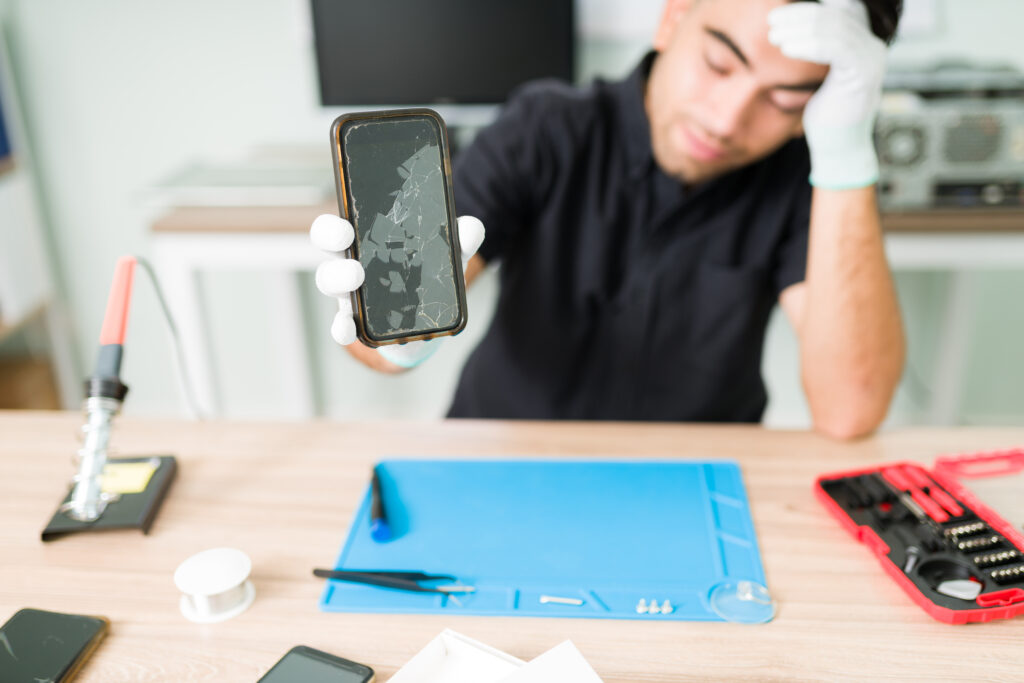
Common Hardware Issues in iPhone Repair in Doha: Screen, Battery, Camera & More Your iPhone is definitely a premium device, so why go for an iPhone repair in Doha? A single drop or splash can cause serious damage. How? We will tell you why. Your iPhone is not immune to hardware issues. A crack, drain, or glitch can affect even your most premium devices with their regular usage.  When this happens, are you unsure of where to run for iPhone services in Qatar? We have the perfect solution for you. When dealing with the diagnosis and repair of common faults, AppleCare is your trusted local expert in Doha.  Common hardware issues, such as cracked screens, battery drain, or camera faults, can reduce your iPhone’s performance and longevity. Here, through this blog, we will uncover how AppleCare can perfectly solve your common iPhone issues.   Cracked or Shattered Screens Common causes of screen damage Accidental drops and applying too much pressure on the iPhone may cause a crack or bend in the screen. If your iPhone does not have a screen protector or case, then everyday handling can make it vulnerable to damage. Extreme temperature or impact with sharp or hard objects can crack the display glass. How does it affect usability and safety?​ Screen damage can cause reduced touch responsiveness, and it can cause frustration with touch input, typing, and navigating. Cracks can cause dead pixels, which make it hard to read messages, view photos, or use apps. A broken screen increases the risk of increased damage by exposing internal parts to dust and moisture. AppleCare’s expert screen replacement solution At AppleCare, we have certified technicians who perform precise, damage-free screen removal and replacement with genuine parts. To ensure flawless functionality, we do a thorough test on every device. Our service retains your Apple warranty, and that too with a clear quote before repair begins.When you search for iphone repair in Doha, you’ll find that cracked screens, faulty batteries, and camera issues are among the most common hardware troubles technicians encounter. Battery Drain & Charging Problems Symptoms of battery issues Rapid battery drain is a frustrating issue, especially when you expect a long-lasting battery life. Unexpected shutdowns, overheating while charging, or slow charging can indicate serious battery issues that disrupt your daily life or business. Sometimes, a charging port issue can also be linked to battery connection problems.  Common root causes in iPhones Natural battery aging, typically after 500 charge cycles, is a common cause of battery failure in iPhones. Extreme temperatures can affect battery performance. Similarly, incompatible chargers can cause charging issues. Frequent full discharges and excessive background app activity cause battery drainage faster than normal. AppleCare’s battery diagnostics and replacement process As a trusted Apple service centre in Doha, AppleCare uses advanced diagnostic tools to assess battery capacity, charge cycles, and overall health. We give much importance to identifying the underlying issue and solving it. Our fast and efficient service only uses genuine batteries from Apple for replacement. Water Damage: The Hidden Threat How water exposure happens Your iPhone is waterproof, but the seals wear down with time and usage. Accidental water spills while eating, working, or travelling can cause issues for your iPhone. Sudden downpours can seep into ports and speakers. Falling into the water, moisture buildup, and steam exposure can affect internal circuits. Symptoms of internal water damage When water damage causes flickering, line and colour distortion. Moisture can make the screen completely unresponsive or laggy. If water reaches the audio components, muffled sound, static, or inability to hear during calls can happen. Charging failures happen if water corrodes battery connections. Unexpected shutdowns, restarts, and foggy cameras are other issues.  AppleCare’s approach to water-damaged iPhones At our iPhone service centre in Doha, our expert technicians check for corrosion, residue, and liquid contact indicators to confirm water exposure. After moisture diagnostics, compound-level assessment is carried out. Corroded parts are cleaned using specialized techniques. All the damaged parts are replaced with genuine parts.  Camera Malfunctions Common camera issues and their causes​ A black screen when opening the camera app can be due to software glitches or internal connection issues. Lens smear, physical damage, or misaligned camera modules cause blurry images. Software bugs or hardware conflicts may cause camera apps to crash frequently. What to look for in symptoms Focus remains poor even after cleaning the lens. A camera freezing mid-use indicates a hardware issue. Camera not activating, flash not triggering, and unusual sounds, such as buzzing sounds, are all symptoms of camera malfunction. A shaky video can be due to a camera sensor problem. How AppleCare resolves iPhone camera problems Our expert technicians conduct system troubleshooting to pinpoint the exact issue affecting camera performance. To check for lens damage, cracks, alignment issues, or internal fogging, AppleCare conducts physical inspections of camera modules. Minor camera issues can be resolved through software updates. We replace faulty cameras with genuine parts. Speaker & Microphone Problems Impact on daily phone use Call quality issues greatly disrupt personal as well as professional life. When it comes to texting or content creation, voice note or video recording failures are a big issue. A microphone malfunction may cause voice-enabled features such as Siri to stop working. It can also cause a great setback to speaker and Bluetooth call usage. Causes of audio input or output failures Dust or debris accumulation in the speaker grill or microphone hole can block sound. Water exposure in its slight form can cause temporary distortion. Physical damage from a fall or pressure may loosen or disconnect internal speaker or mic parts. Incompatible accessories may interfere with audio signals. AppleCare’s repair and replacement process AppleCare is a highly reliable Apple store in Doha, Qatar. Our technicians use advanced diagnostic tools to test input or output. We check whether it is a hardware- or software-related issue and provide a solution accordingly. If the problem is due to software bugs, iOS updates are performed. Chip-Level & Board Repairs What chip-level faults can affect

Common Hardware Issues in iPhone Repair in Doha: Screen, Battery, Camera & More​ Read More »

Common iPhone Issues